
How to Track New Competitor Product Launches Using Web Scraping

A competitor's new product launch can change market dynamics. It may introduce a new category, target an emerging customer need, or offer an alternative to existing products. In competitive e-commerce markets, tracking these changes can reveal opportunities and help businesses respond before they fall behind.
The problem is that most monitoring tools watch pages you already know about. A new product is a new URL, so a change alert on an existing page won’t catch it. To detect competitor product launches with web scraping, you need to discover new listings, compare them with what you’ve already seen, and filter out restocks and relists. This guide shows a step-by-step way to do that: regularly collect your competitors’ product lists, compare each new list with earlier ones, and flag what is new.
Step 1: Discover Newly Added Products
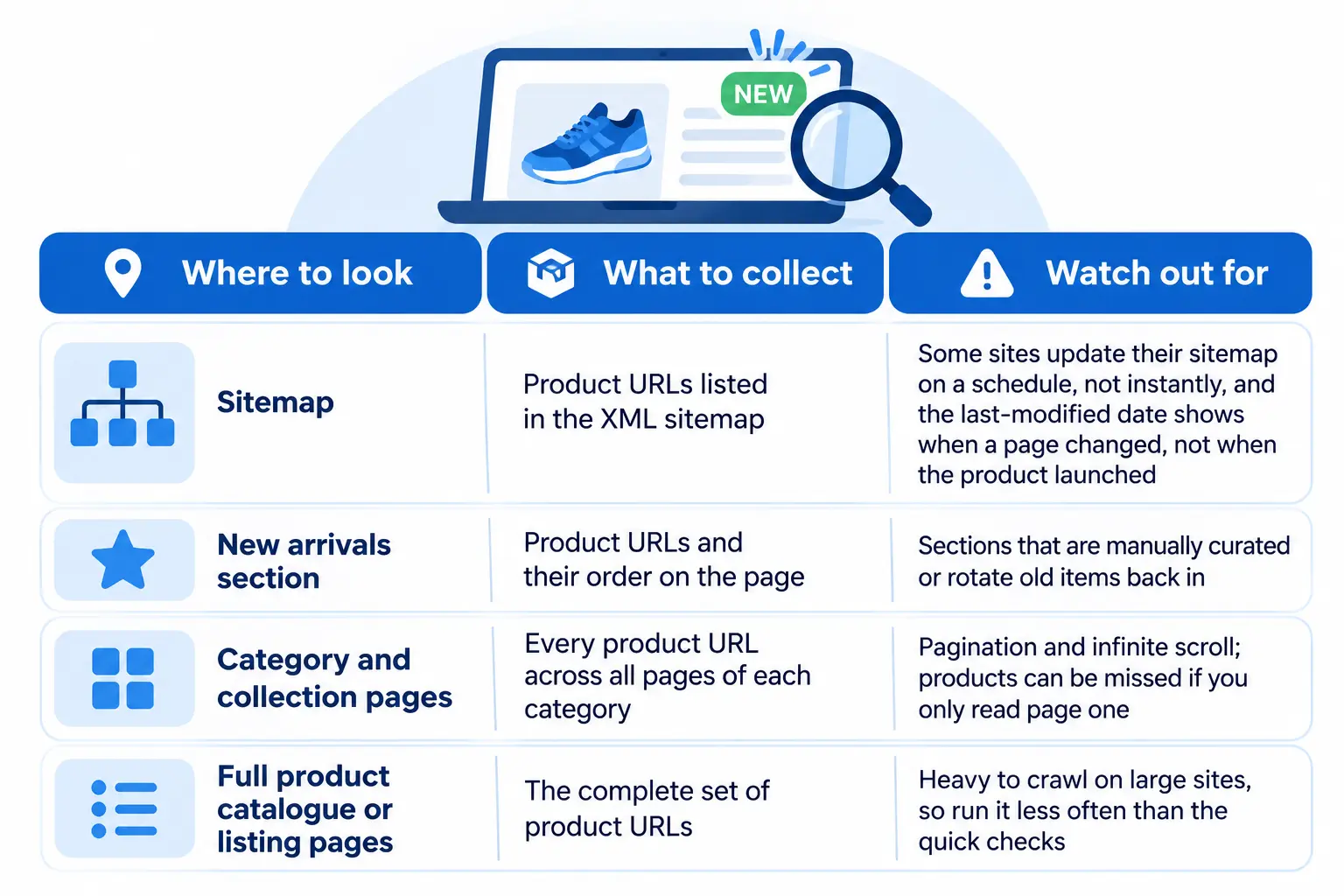
A new product is a new URL, so you can’t find it by watching product pages you already know about. Instead, monitor the pages where new products first appear and collect every product URL they list. Anything you haven’t seen before is a candidate launch.
Use at least two of these for each competitor. A sitemap is quick, but it can lag or be incomplete, and category pages catch products that the sitemap misses. Save the full list of URLs on every run, because Step 2 turns these lists into snapshots you can compare.
Step 2: Snapshot the Catalog
A snapshot is the full list of products you found on one run, saved with enough detail to compare against the next run. Collect these fields for every product.
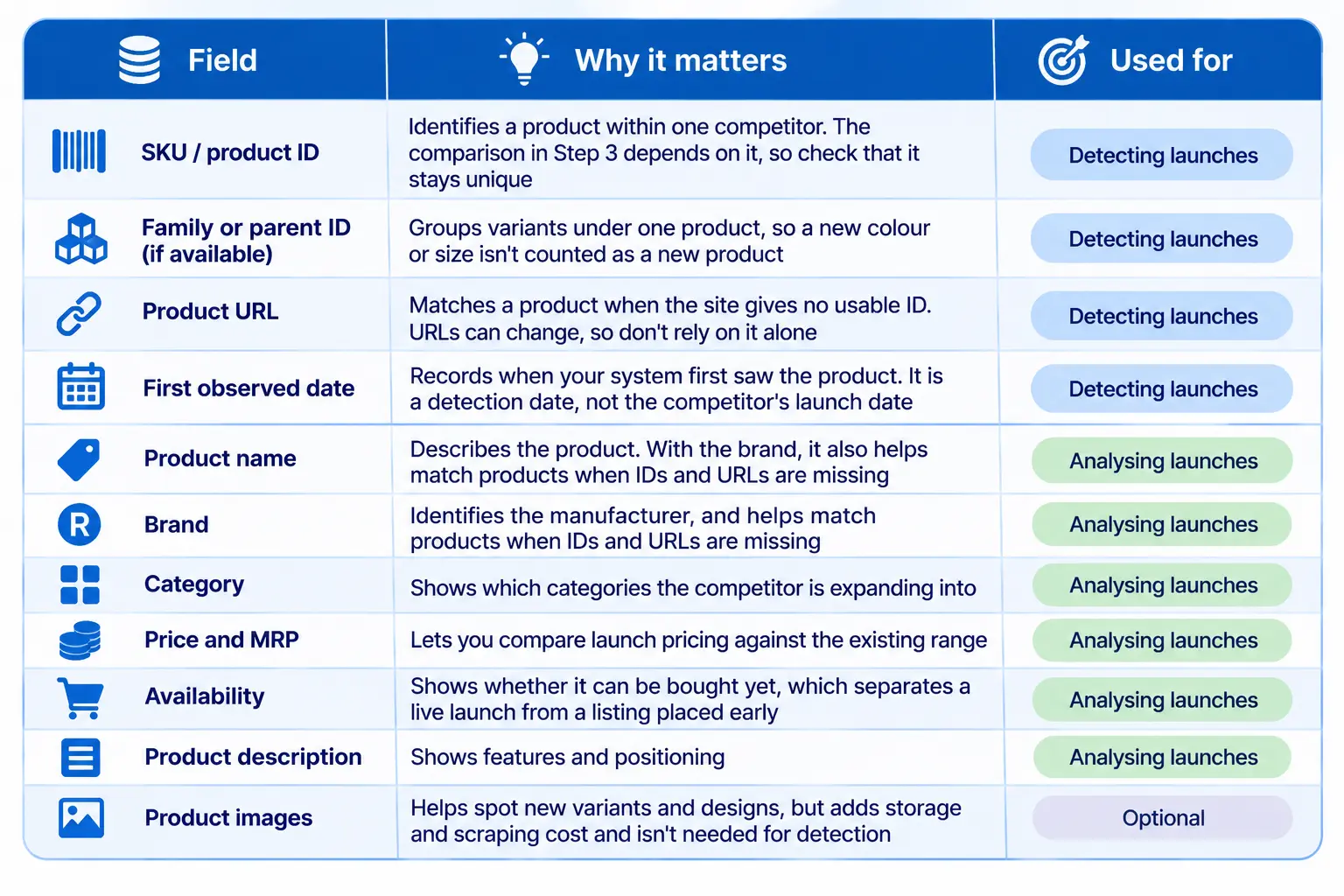
The detection fields find a launch. The rest describe the product, and they only become useful once you’ve found one, when you need to judge what it is and how it is priced. No single detection field is fully reliable, so match products using the rule below.
Note that the first observed date is when your system detected the product, not when the competitor launched it. A product may have been live for hours or days before your first run saw it. The more often you run, the smaller that gap.
Match products across runs
IDs and URLs both change, so use them in this order:
- The site’s product ID or SKU, if it has one. Use it only within one competitor, since the same ID can appear on different sites.
- The canonical URL, with tracking parameters removed, if there is no usable ID.
- A match on brand, name and key attributes, if neither is reliable. Mark these matches as low confidence and check them by hand.
Keep a list of old IDs and URLs that point to the same product, so a moved page doesn’t look like a new one. If an ID suddenly belongs to a different brand or name, treat it as a conflict and review it instead of merging the records.
Run a baseline first
Save your first snapshot without raising any alerts. This is the baseline. If you skip it, every product the competitor already sells looks like a new launch, and the first alert will flood your team with false results. From the second run onward, each new snapshot is compared with the previous one, and only products missing from the baseline are treated as candidates.
If you later add a new competitor or a new category, run a fresh baseline for it before turning alerts on.
Step 3: Compare Against Historical Data
Finding a product that wasn’t in yesterday’s snapshot is not enough to call it a launch. The product may have been listed last month, removed, and brought back. It may be an old product with new photos. It may be an existing product with one extra colour. To tell these apart, compare each run against the previous snapshot and against everything you have saved since the baseline.
Ask four questions of every product in today’s snapshot:
1. Was the product already listed before?
Look the product up using the matching rule from Step 2, first in the previous snapshot, then in your full history. If it matches a product in your history that is missing from the last run, it is a relist, not a launch. If the ID or URL is new but the brand, name and attributes match a product you’ve seen before, it is probably a renamed or moved page, so send it for review. Only a product with no matches anywhere is new. If a run returns far fewer products than usual, run it again before treating the missing ones as removed.
2. Has the competitor entered a new category?
When a new product appears, check its category against every category you have seen for that competitor. A product in a category you have never recorded before is a bigger signal than another product in a familiar one, because it points to range expansion, not a routine addition.
3. Did the listing change, or is it something new?
If the product was in the last snapshot but its image changed, it is usually a refreshed listing. Record it as an update. If the title, description or attributes also changed, or several new images appeared, check whether it is a new design or variant before you dismiss it.
4. Has a new variant been introduced?
Group products into families first. Link variants through a shared parent ID, a product group ID in the page data, a variant parameter in the URL, or a matching title with a colour or size added. If a new ID or URL joins an existing family, record a new variant. If variants sit inside one product record, compare the variant lists. If a new item matches no family, treat it as a new product and flag the review match. Compare variants as well as products, or you will either miss them or report them as launches.
Step 4: Automate the Monitoring
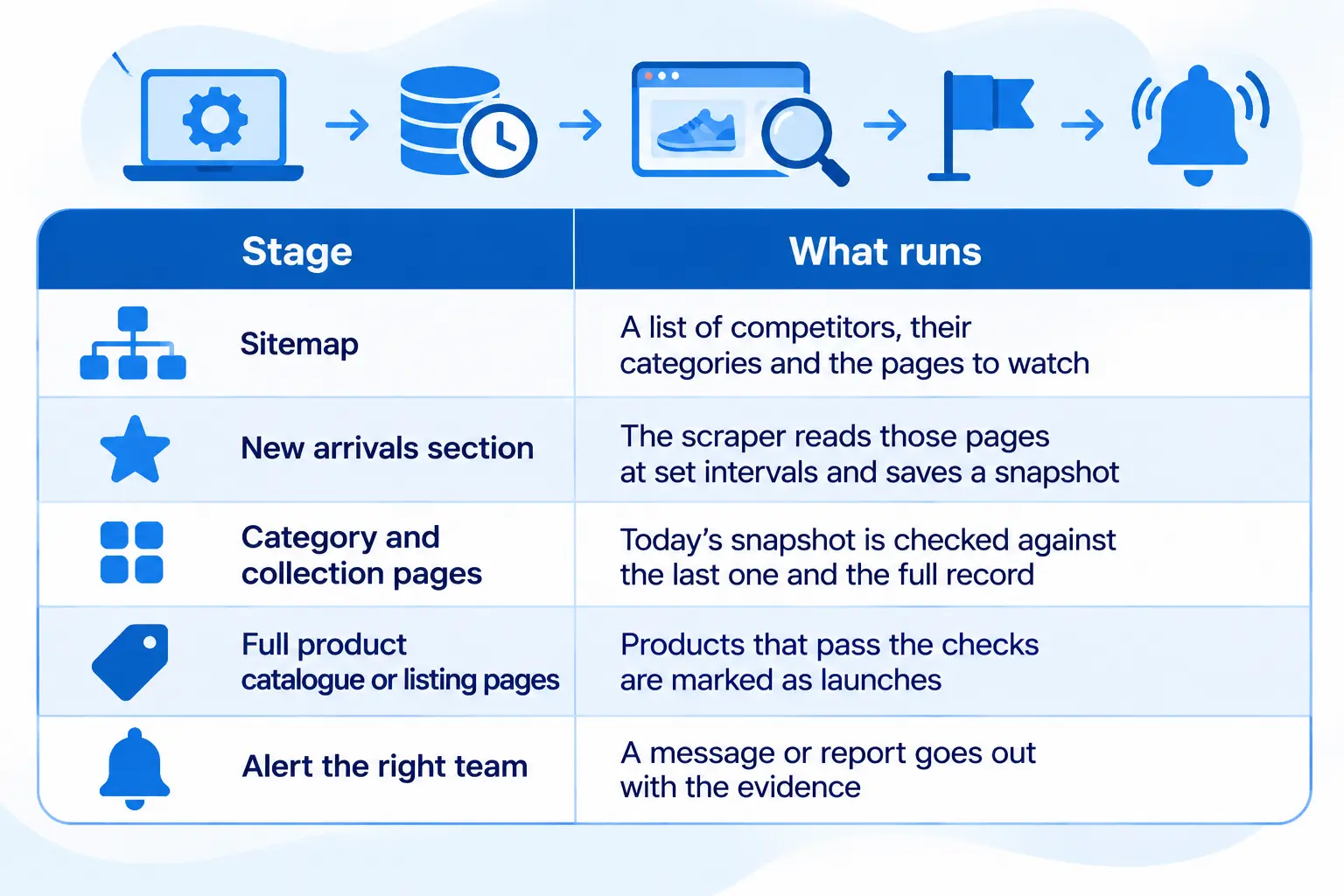
Steps 1 to 3 give you a method you can run by hand. Automation turns it into a scheduled system that alerts the right people when something changes. The five parts below are the steps you have already built, connected in order.
Choose a schedule that fits the decision
Match how often you collect to how quickly your team can act. A daily run is enough for most catalogues. Fast-moving categories, such as fashion or consumer electronics, may need several runs a day. Slow catalogs can be checked a few times a week. Don’t schedule runs more often than they can finish, and keep request rates low so you don’t overload the competitor’s site.
Step 5: Turn Launch Data into Business Decisions
An alert tells you a competitor launched something. The value comes from what your team does with the history you have built up. Each use below draws on fields you already collect: category, price, description, availability and first observed date.
Product development and innovation
Read the descriptions and categories of new launches to see which features, materials or sizes competitors are adding. If several rivals launch similar products within a few months, that may point to a feature customers are asking for. Share these patterns with your product team regularly, not just after each launch.
Market opportunity identification
A new category appearing in a competitor’s catalogue is an early signal that they see demand there. Check whether you sell in that category, and how many competitors have entered it. A category where only one rival has launched may be a gap you can fill. One where many have launched may already be crowded.
Product assortment planning
Compare your range with what competitors are adding and removing. Launches show where the market is moving. Products that appear and quickly disappear are worth a closer look. They may have sold poorly, but they may also be out of stock, renamed or removed for another reason. Check availability, price history and any replacement listing before you conclude.
Competitive positioning
Descriptions, brand names and categories show who a competitor is targeting. A rival moving into a premium range, or adding budget variants of an existing product, changes how your products compare. Review these shifts when you plan messaging, so your positioning reflects the current market, not last year’s.
Pricing strategy
Launch price is the most direct input. Compare each new product’s price with the competitor’s existing range, and with your own comparable products. Then keep tracking it. A price that changes within weeks of launch may mean the first price was off or the product was selling slowly, though a promotion or stock issue can also explain it. Keep checking after launch, so you see how the price settles, not just where it started.
Conclusion
Competitors rarely announce their launches, so catching them early means looking where new products first appear. Discover new product URLs, snapshot the catalogue, compare each run against your history, automate the process on a schedule, and send alerts with enough detail to act on. Done well, you spot launches while you still have time to adjust your pricing, assortment, and positioning.
Building and maintaining this across many competitors takes ongoing effort, especially when sites block requests or change their layout. If you want launch data delivered in a clean, ready-to-use format, Datahut’s competitor monitoring service can set it up for you. Get in touch to talk through your use case.
Frequently Asked Questions
How often should I check competitors for new product launches?
Match the schedule to how quickly your team can act. A daily run is enough for most catalogues. Fast-moving categories, such as fashion or consumer electronics, may need several runs a day, and slow catalogues can be checked a few times a week. Don’t run more often than the job can finish, and keep request rates low.
Can I track competitor launches without writing code?
Yes, to a point. No-code monitoring tools can watch a sitemap or a category page and alert you when new URLs appear. They are a good way to start with a few competitors. Once you need product details such as price, category and variants, or you track many sites, a custom script or a managed scraping service is more reliable.
Which data fields help detect a new SKU?
The product ID or SKU is the most important, because it identifies a product across runs, as long as it is unique within that competitor’s site. When a site shows no usable ID, match on the cleaned URL, and as a last resort on brand, name and attributes. The first observed date records when you detected the product, not when it launched. Name, brand, category and price describe the product but don’t detect it. See Step 2 for the full list.
How do I avoid false launch alerts?
Do three things. Save a baseline snapshot first, so existing products are not reported as new. Match every product against your full history, including old IDs and URLs, so relisted and renamed products are not counted as launches. Then separate new variants and image updates from new products, as in Step 3. Hold uncertain cases for a quick manual check before sending an alert.


